Import data
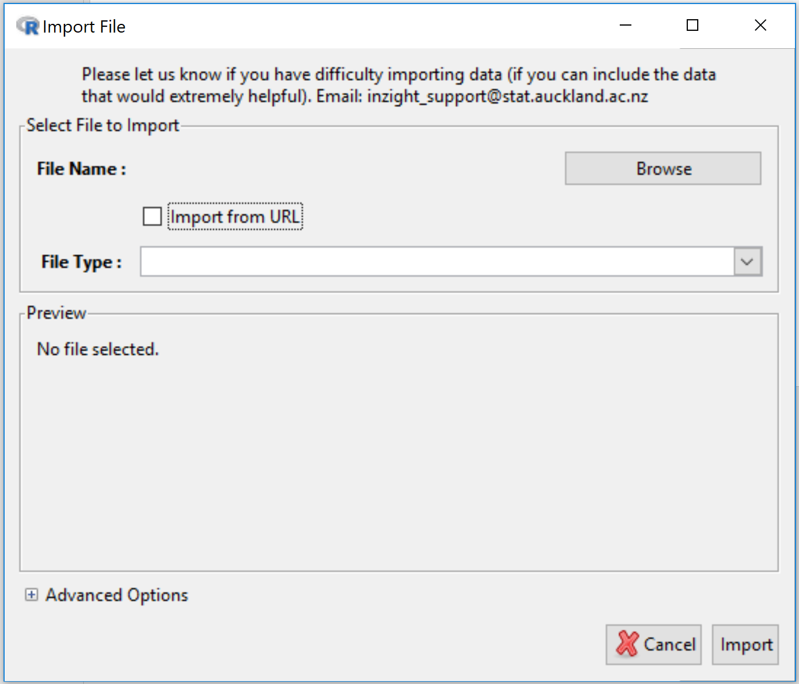
By default imports from a file on your computer. Throws up a browser button to initiate a dialog for navigating to the file you want.
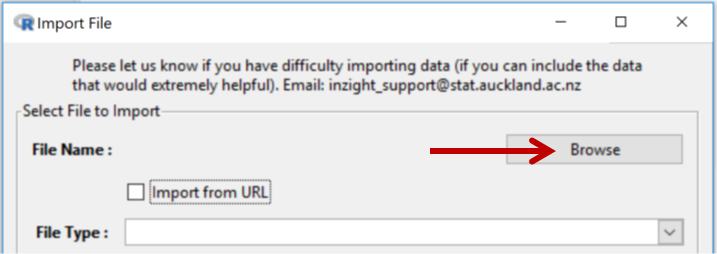
On clicking the Import from url checkbox the behaviour changes (as below)
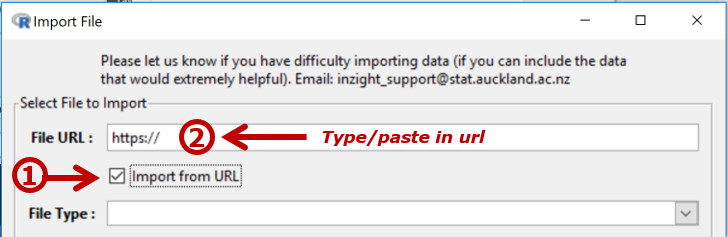
Type or paste in the url address of the file you want to import.
When pasting a full url, ensure the prepopulated “https:// ” is overwritten.
File types
NZight assumes that data sets are in rows = cases by columns = variables format.
iNZight can import files of the following types:
| Type | Extension | Advanced Options |
|---|---|---|
| Comma Separated Values | .csv | Separator, encoding, comment character |
| Tab-delimited Text files | .txt | Separator, encoding, comment character |
| 97-2003 Excel files | .xls | Sheet selection |
| 2007 Excel files | .xlsx | Sheet selection |
| SPSS files | .sav | - |
| SAS Data files | .sas7bdat | - |
| SAS Xport files | .xpt | - |
| STATA fles | .dta | - |
| R Object files | .rds | - |
| RData files | .RData, .rda | Object selection |
Click the Import button (at bottom right) when you are happy with what appears in the Preview panel.
iNZight identifies the type of the file being imported by looking for one of these filename extensions. iNZight attempts to read the file and populate the Preview panel. In most cases, you should simply be able to choose the file and click Import.
If no preview appears, iNZight has been unable to read the file. Check the extension or try changing the Advanced Options.
The Advanced Options at the bottom-left of the Import dialog box (Click on the “+” to expand) allows you to change default behaviour.
Metadata in csv files
Metadata is information about the data.
When .csv files and .txt files are imported into iNZight, all lines in the data file beginning with a # are ignored (there is one exception below).
This enables you to include metadata in your .csv or .txt data files by starting each line of metadata information with a #.
With .csv files, you can go further and include instructions telling iNZight to treat variables in various ways. This is particularly useful for instructing iNZight to order the levels of a categorical variable in a desired way, rather than the default way.
Lines starting with #' @ are interpreted by iNZight as containing instructions of this form.
Example of metadata
We will use the following lines from the top of the file at https://www.stat.auckland.ac.nz/~wild/data/test/Census%20at%20School-500&meta.csv to show how this works.
## --- Meta Data --- ##
#' @factor gender[male,female]
#' @factor cellsource[pocket,parent,job,other]
#' @factor getlunch[home,tuckshop,dairy,school,friend,none]
#' @numeric age
#' @factor year
#' @factor school=year[primary=5|6,intermediate=7|8,high=9|10|11]
#' @factor travel[walk,bike,car=motor,public=bus|train,other]
#' @factor cellsource
#' @numeric phonebill=cellcost
## --- Data --- ##
By default in R, and therefore iNZight, the categories (levels) of a categorical variable (factor) are ordered alphanumerically.
On Line 2 above is an instruction for gender to be treated as a categorical variable (factor) with levels in the order "male, female", rather than the alphabetic default "female, male". The next 2 lines (3--4) are doing the same sort of reorderings for cellsource and getlunch.
The variable year in the data file has numeric values ranging from 4 to 13 and so by default will be treated as a numeric variable. #' @factor year on line 6 is an instruction to treat it as a categorical variable (factor).
Line 7 is an instruction to construct a new categorical variable called school from year in which students in year-levels 5 & 6 become a category called "primary", those in year levels 9 to 11 become a category called "high". Year levels 4, 12 and 13 are not mentioned in the statement so those categories remain unchanged and sort after those mentioned in the statement.
Line 8 redefines travel by combining categories "bus" and "train" into a category called "public".