Multiple Response
A module that provides the ability for analysing data with multiple (binary) response options. Think of this as a checkbox answer, as opposed to a radiobox:
Standard factor variable (radio buttons - one answer):
| person.id | fav_fruit |
|---|---|
| 1 | pear |
| 2 | apple |
| 3 | orange |
| 4 | apple |
Multiple Response variable (checkboxes - multiple answers):
| person.id | fruit_apple | fruit_banana | fruit_pear | fruit_orange |
|---|---|---|---|---|
| 1 | 1 | 0 | 1 | 0 |
| 2 | 1 | 0 | 1 | 1 |
| 3 | 1 | 1 | 1 | 1 |
| 4 | 1 | 0 | 0 | 0 |
Analysing these are going to require two different approaches, and that's where the Multiple Response module comes in!
In the table above, we've used 1's and 0's to code whether or not someone checked the box. This is the easiest way, however you can also provide "yes" (=1) or "no" (=0) if you prefer.
Getting Started
First, you'll need to load an appropriate dataset (i.e., one that has data coded like the table above). For this example, we will be using the Census at School 5000 dataset, which you can load by going to File > Example data, select Multiple response as the module, and census.at.school.5000 for the data. Once you've loaded this, you can go to Advanced menu and click Multiple Response, which will load the module.
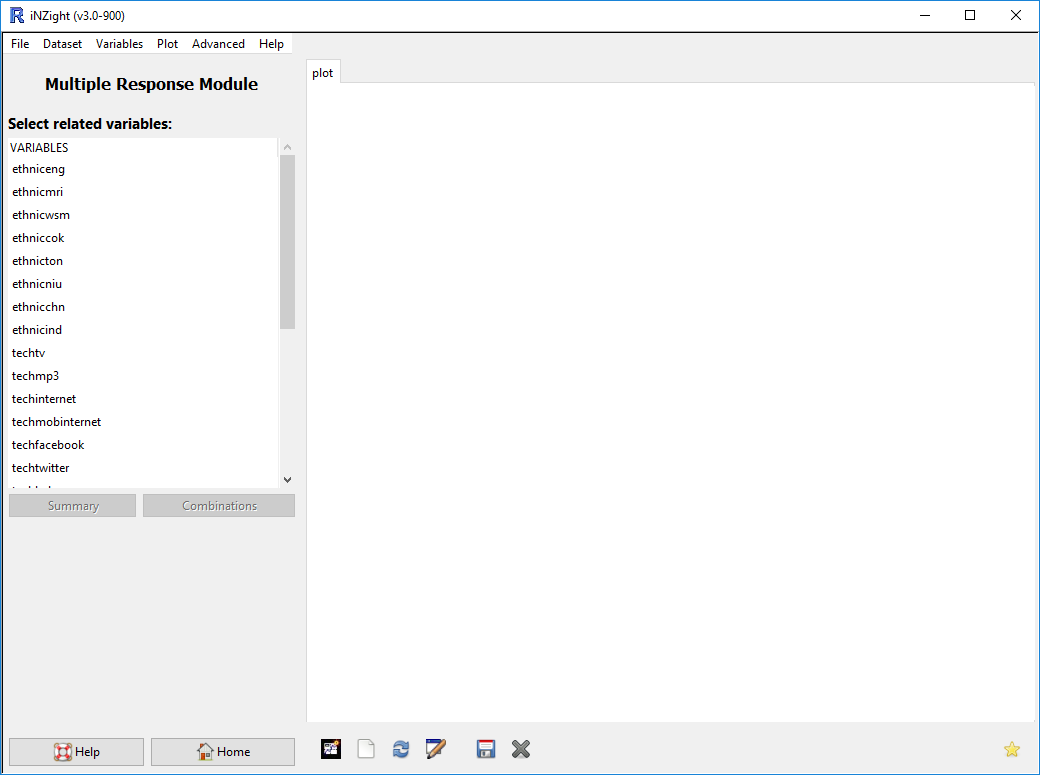
The Census at School 5000 dataset contains several variables, each with multiple responses. Here, we will investigate tech: each student was asked to select all technologies they have used.
Generating Graphs
Once you've loading the Multiple Response window, you'll be able to select variables to compare. In our example, we will use the variable tech, and select the responses tv, internet, facebook, twitter, and skype.
To select multiple variables, hold the CTRL key (or Command on Mac).
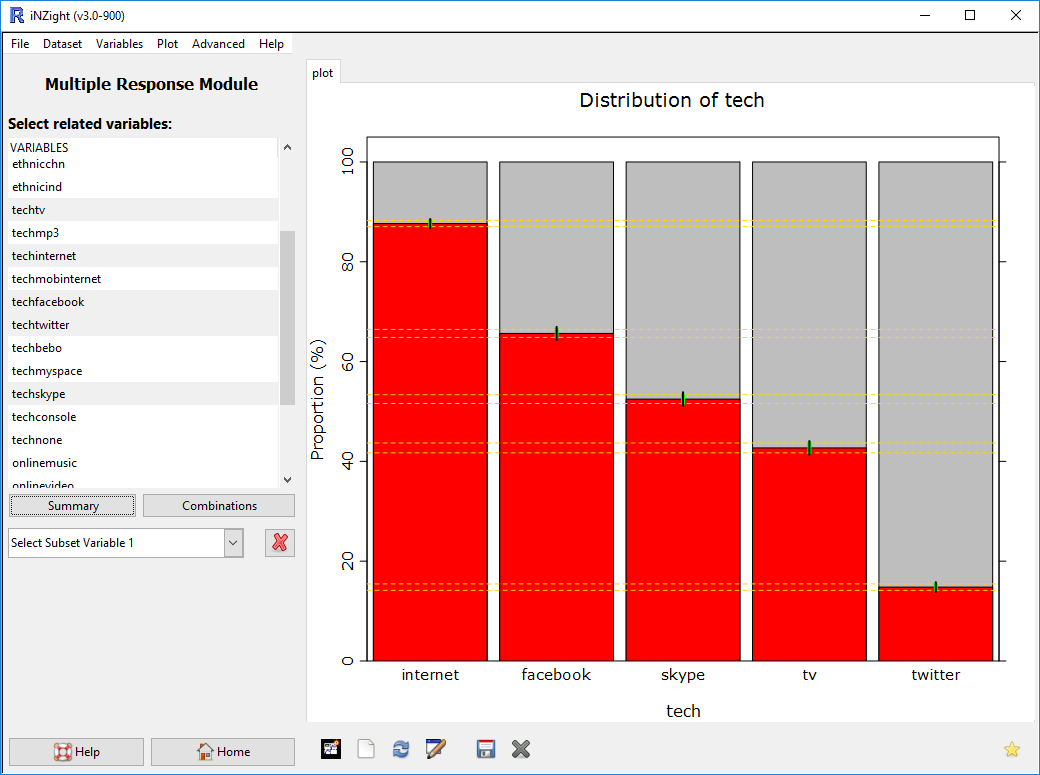
The Summary and Combinations buttons will give you summary tables of the data, and a "visual" graph of the combinations occurring in the dataset.
Sub-setting the Graph
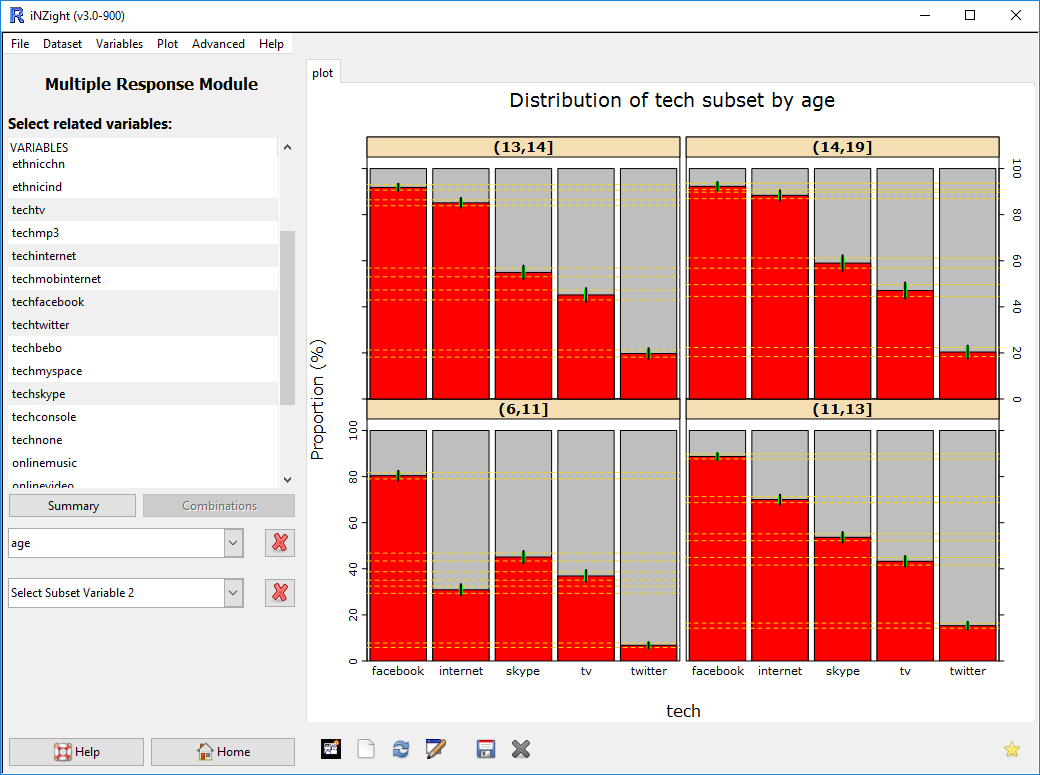
As with the main iNZight module, you can split the graph into several subsets to better explore trends. In the example below, we have selected age as the sub-setting variable. Because age is a numeric, iNZight has divided it into four groups.
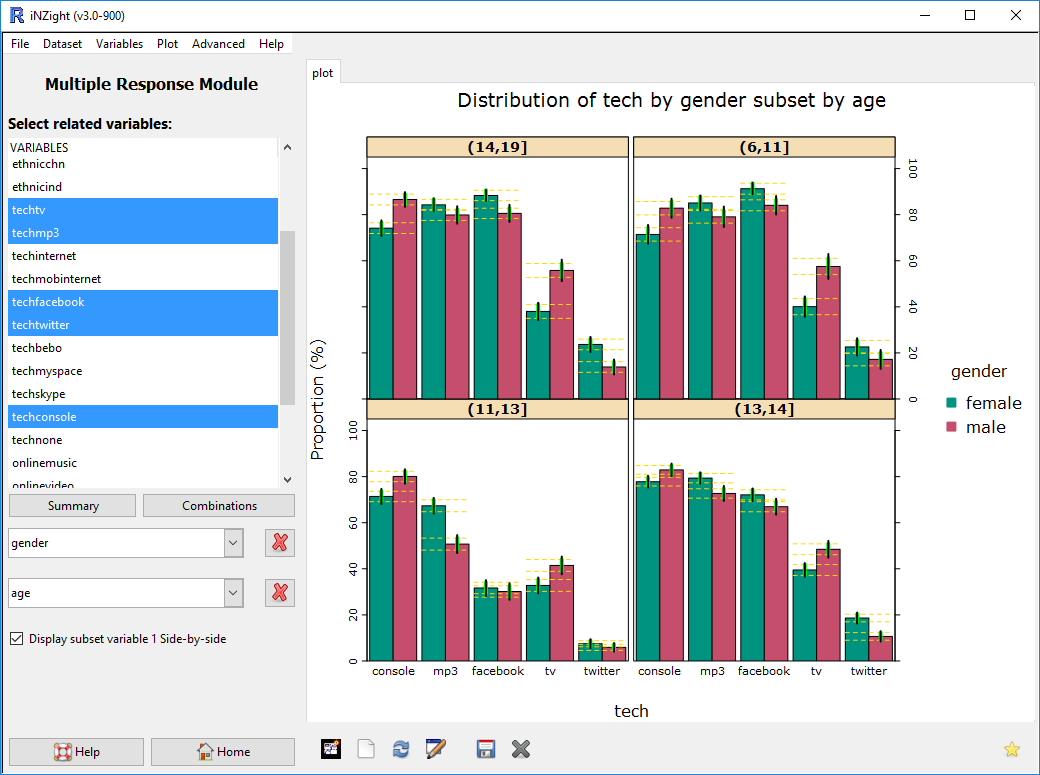
To delve further into trends, you can use two sub-setting variables. First, we'll pick a new set of responses: tv, mp3, facebook, twitter, and console. The first sub-setting variable is gender, and the second is age.
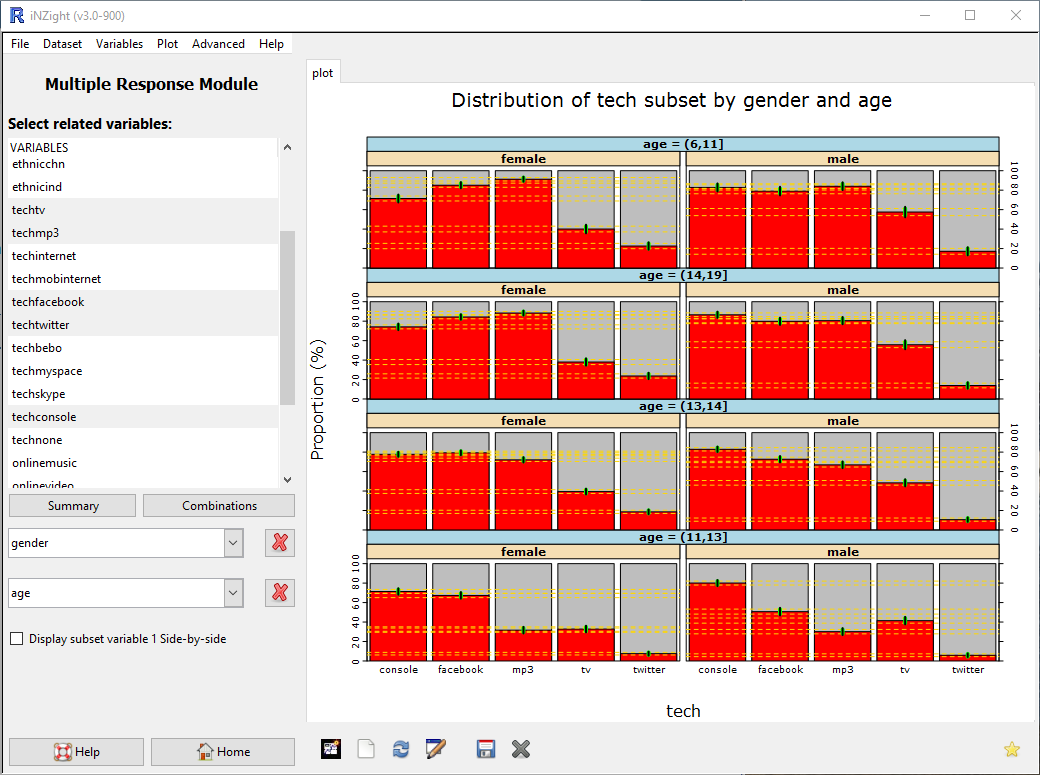
If we want to more easily compare the first sub-setting variable, we can check the box Display subset variable 1 side-by-side: