Validation
Often, we want to validate that the data in a dataset adheres to our expectations about how that data should behave based on external real world-knowledge.
For example, we expect the heights of humans are not negative or someone cannot work for more than 24 hours in a single day.
The validation window gives us the ability to define or import rules, and check whether the data conforms to those rules identifying any exceptions.
-
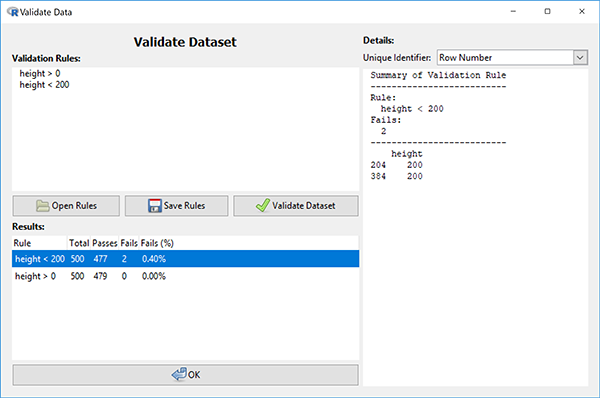
In the validation window, rules can be typed into the Validation Rules text box in the top left or imported from a text file using the Open Rules button.
Using the first example, the rule to check whether heights are above 0 can be written in this textbox as
height > 0in this text box (given there is a variable namedheightin our dataset). -
To check all of the rules that have been defined in this textbox, click the Validate Dataset button.
The results of each rule are presented in a table at the bottom of the window and show the number of observations that were checked ("Total"), the number of passes and failures ("Passes" and "Fails" respectively), and the fail percentage ("Fails (%)"). Initially this table is sorted by failure percentage, but you can click on other column headers to order the list in other ways.
-
The Unique Identifier selection box at the top right of the validation window allows you to select the name of a variable that contains unique identifiers for the units/cases/rows in the data set.
This is more useful than employing row numbers (the default setting) because unique-identifier values remain unchanged in the data when rows are deleted whereas row numbers will change.
-
Double clicking on a row of the results table will generate a detailed breakdown of the results in the Details section on the right-hand side of the window.
This breakdown will provide details about the observations which failed on that particular rule, giving the row numbers (or unique-identifier values if a unique-identifier has been selected) of these observations and the values used to assess the rule.
Validation rules or changes to imported rule files are discarded once the validation window is closed.
-
If you would like to store the set of rules you have defined or save any changes to an imported rule file, this can be done using the Save Rules button.
They are saved into a text file on your computer that can be imported again using the "Open Rules" button or viewed using a text editor.
The rules you use to validate the dataset do not need to be simple comparisons between a variable and a static value as in the previous example. More complex rules can be built by performing calculations on the variables, e.g.
weight / height^2 < 50will verify that each observation's body mass index is below 50. The values of each variable contained in the calculation as well as the end result are provided in the detailed breakdown. -
Instead of comparisons between a variable/calculation and a static value, we can compare against another variable or a calculation based on the data.
For example, to check that the income of an individual (contained in variable
Income) is no more than 1000 times their number of hours per week (contained in variableHours), we can use the following rule:Income <= Hours * 1000. This will calculate a different value to compare income against for each observation.
For more information on what is possible using validation rules, the vignettes and help files of the underlying R package (validate) might be useful: Introduction to Validate vignette and Validate package (in particular, the syntax section of the reference manual).