Importing data
The first thing you need to do after starting iNZight is to load a data set to work with. We've made this as easy as possible, and iNZight recognizes several file types, including CSV and Excel (on Windows). For an extensive list, check out the File menu documentation.
iNZight lets you import your own data, either stored locally on your machine or accessed via a URL. The type of file doesn't matter---so long as iNZight knows how to read it, just specify the file name and iNZight will do the rest. However, we have also provided a set of example data sets to make exploring the program easier for those here to learn.
Loading your own data
If you have a data set you would like to load into iNZight, go to the File menu and select Import Data. This will open the following window.
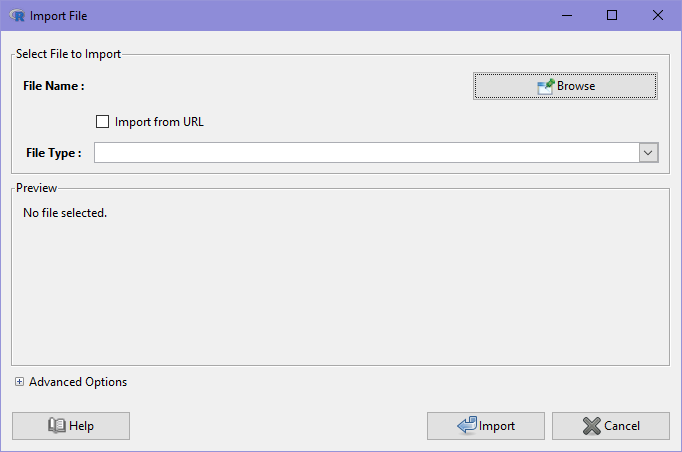
Use the Browse button to search for a file on your computer, or provide a URL to a file on a remote server. Once you have chosen your file, iNZight will display a preview of your data. If it looks OK, click Import to load the data into iNZight.
Using an example dataset
To make it even easier to get started with iNZight and learn data techniques, we have provided some example datasets for you to load quickly. These are used in the examples throughout the website so you can easily follow along.
To load an example data set, go to the File menu and click Example data .... You'll be presented with this window:
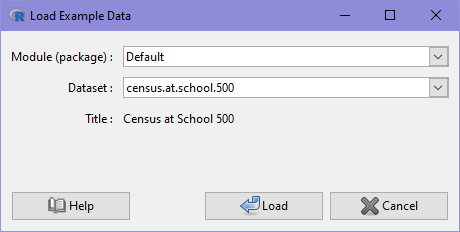
In the example above, we've selected the "Census at School 500" dataset from the Default iNZight module. We will be using this dataset a lot for many of our examples. Click Load to load the data into iNZight.